Interface
Organization Dashboard is divided into 4 sections:
- Main Window - displays the modules: Tasks, Task Lists, Projects, Teams, and Settings. A single mouse click is enough to navigate to the selected module.
- Sidebar - provides access to the application’s homepage, new tasks, notifications, and new email messages for the logged-in user.
- Top Bar - allows quick registration of the user’s work start/end, access to other application modules such as: Knowledge Bases, CRM, Mail, Account Settings, and the ability to go to notifications and the user profile.
- Search Bar - enables quick searching within the application.
Main Window
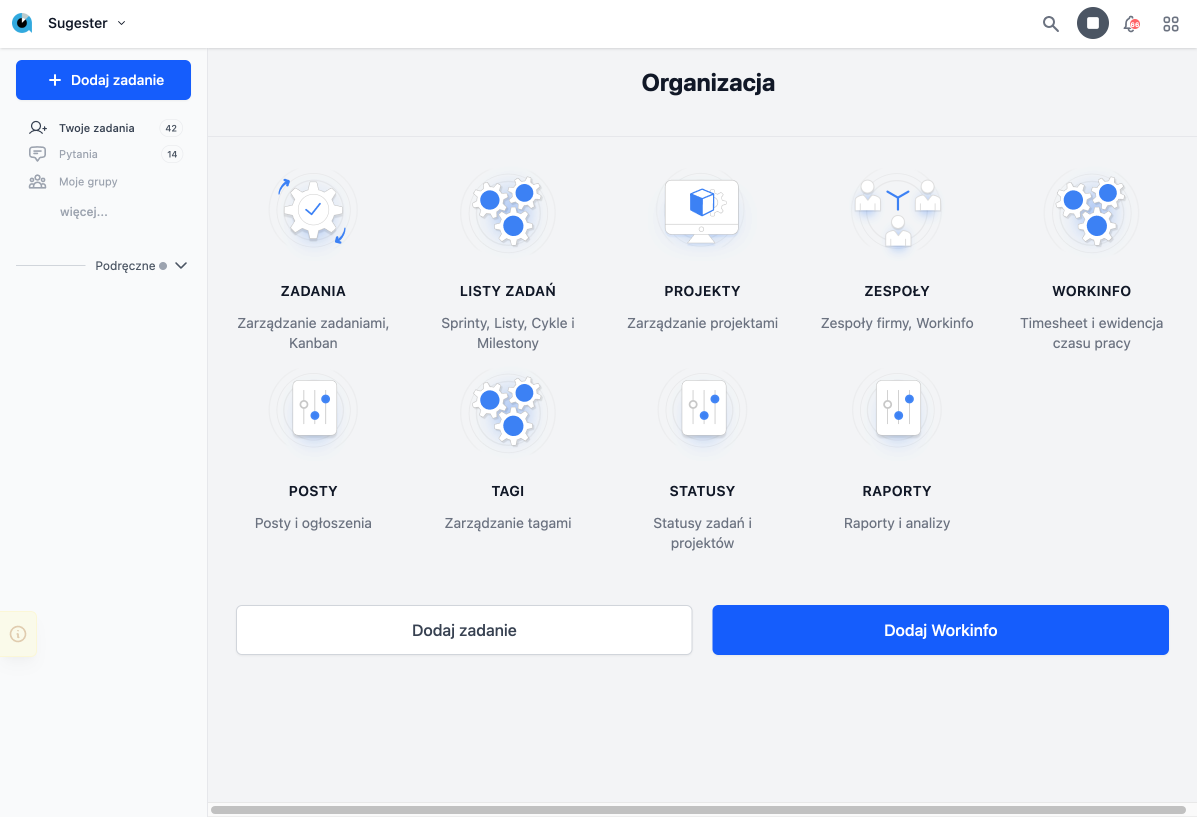
From the main window, you can:
- go to the Tasks module, where you will find all tasks assigned to the logged-in user as well as tasks from all teams.
- go to the Task Lists module, where you can browse, for example, Sprints and Milestones and create new ones.
- go to Projects, where you can view a list of all projects and create a new one.
- see all Teams added to Sugester. By default, the logged-in user has access to information about their Team - members of the Team, Projects, Tasks, activities, Leaves, and Workinfo. They can also access information about other teams by clicking View all in the top right corner.
- go to Settings, where you can add or edit Statuses for tasks.
- quickly create a new task in the system by clicking Add task.
- add information about worked hours and completed tasks by clicking the Add Workinfo button.
Sidebar
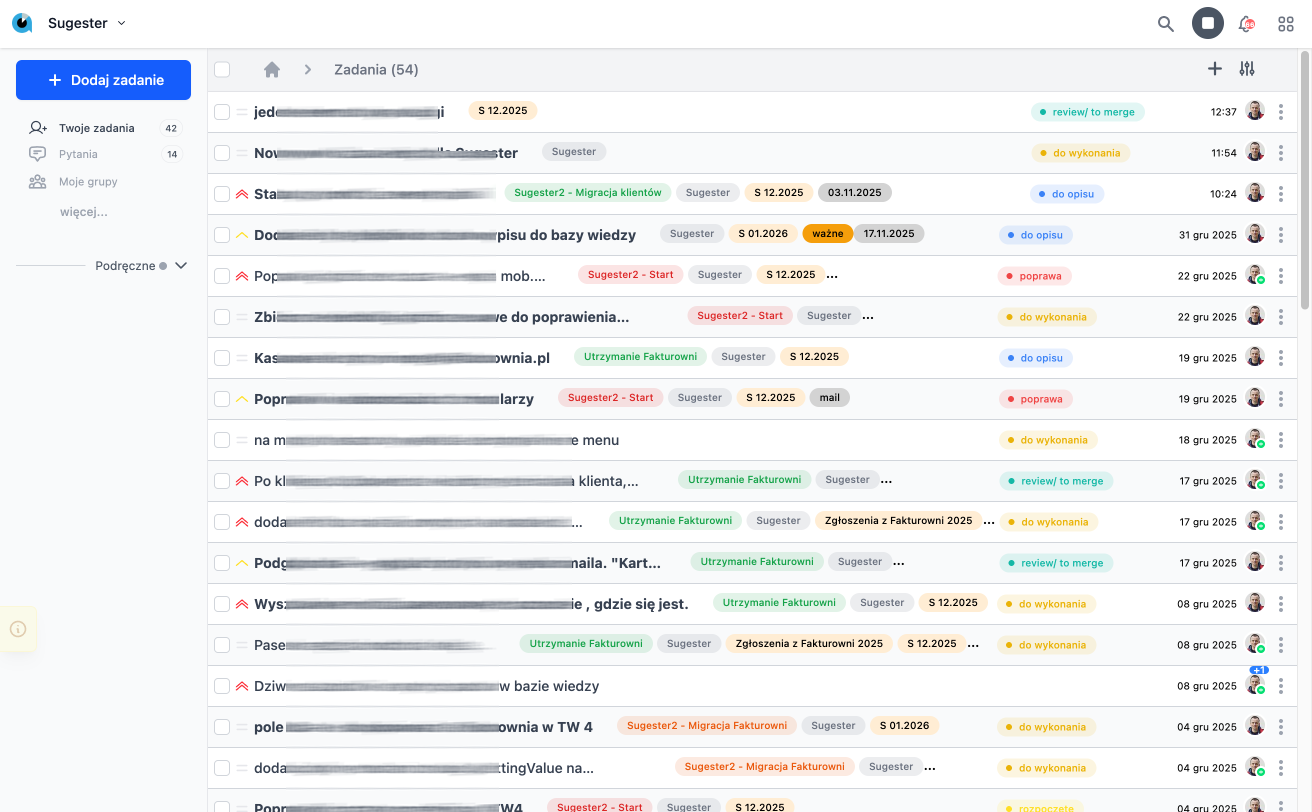
From the Sidebar, you can:
- go to the homepage by clicking on the Sugester logo.
- go to the list of new tasks that have appeared in the system for the logged-in user by clicking the New tasks tab.
- go to the Notifications list for the logged-in user.
- go to the list of email messages for the logged-in user.
Depending on the module, the Sidebar will disappear or display different tabs.
Sidebar for the modules: Tasks, Task Lists, Projects, and Teams
- By clicking +Add task, we can create a new task.
- Your tasks - this tab shows the list of current, open tasks assigned to the logged-in user; by clicking the dropdown arrow, additional tabs are visible.
- Added by you - here we find current tasks created by the logged-in user.
- Watched - this tab displays all open tasks in which the logged-in user is added as a Watcher.
- Future - this section displays tasks for future days other than today assigned to the logged-in user.
- All - here we find a list of all tasks (open and closed) from all teams.
- Future - this section displays future tasks for the entire team.
Sidebar for the Knowledge Base module
- the +Add knowledge base button - allows creating another Knowledge Base.
- the All entries button - allows you to go to all knowledge bases created on the account.
- Categories - allows displaying a list of all Categories for all knowledge bases on the account.
For other modules in the system, the Sidebar is not visible.
Top Bar
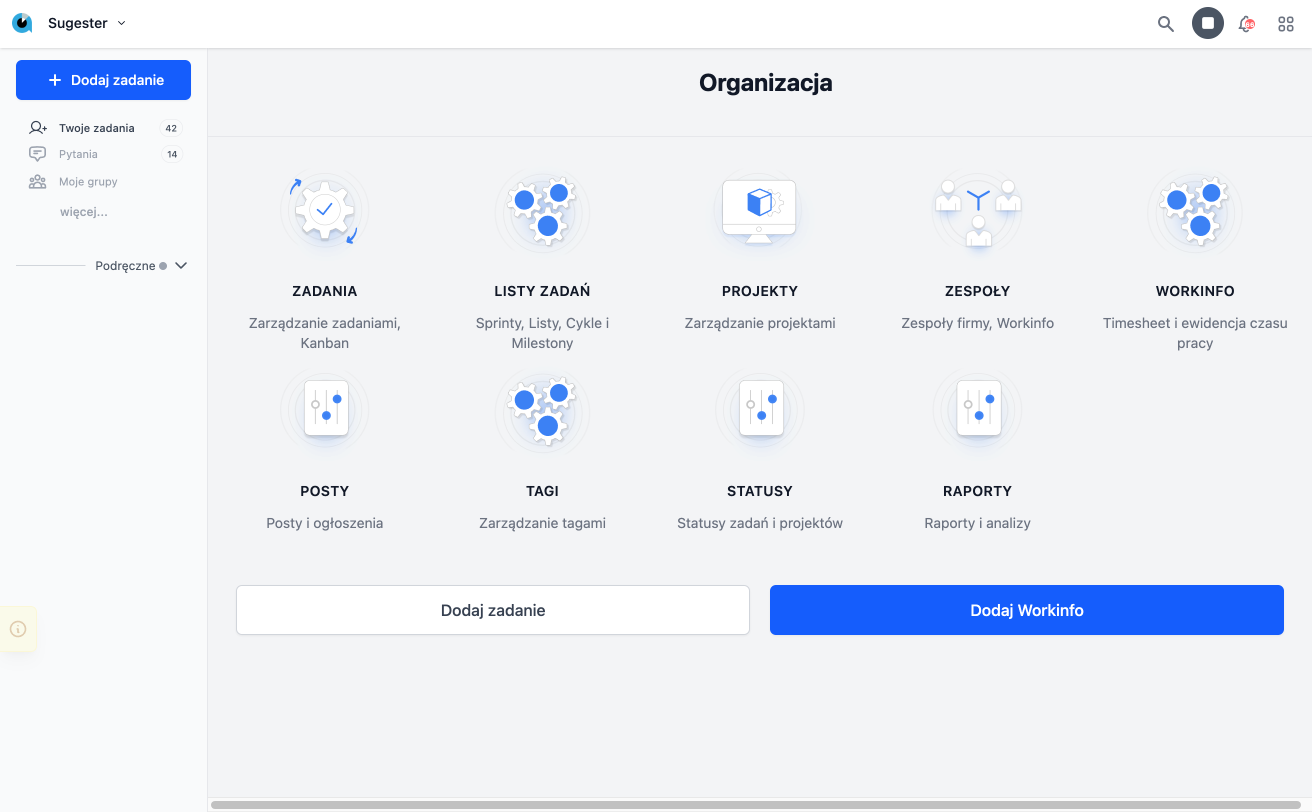
From the Top Bar, you can:
- register the start and end of work. Simply - when starting work click the green “start,” and at the end of work click the gray “stop.”
- go to other modules such as Knowledge Bases, Accounts, CRM, and Mails.
- view the list of recent Notifications. If you want to see all your Notifications, click See all.
- go to the user’s Profile, where the logged-in user can check their work time, recent tasks, leaves, and activities, and set the application’s light or dark mode.
Search Bar
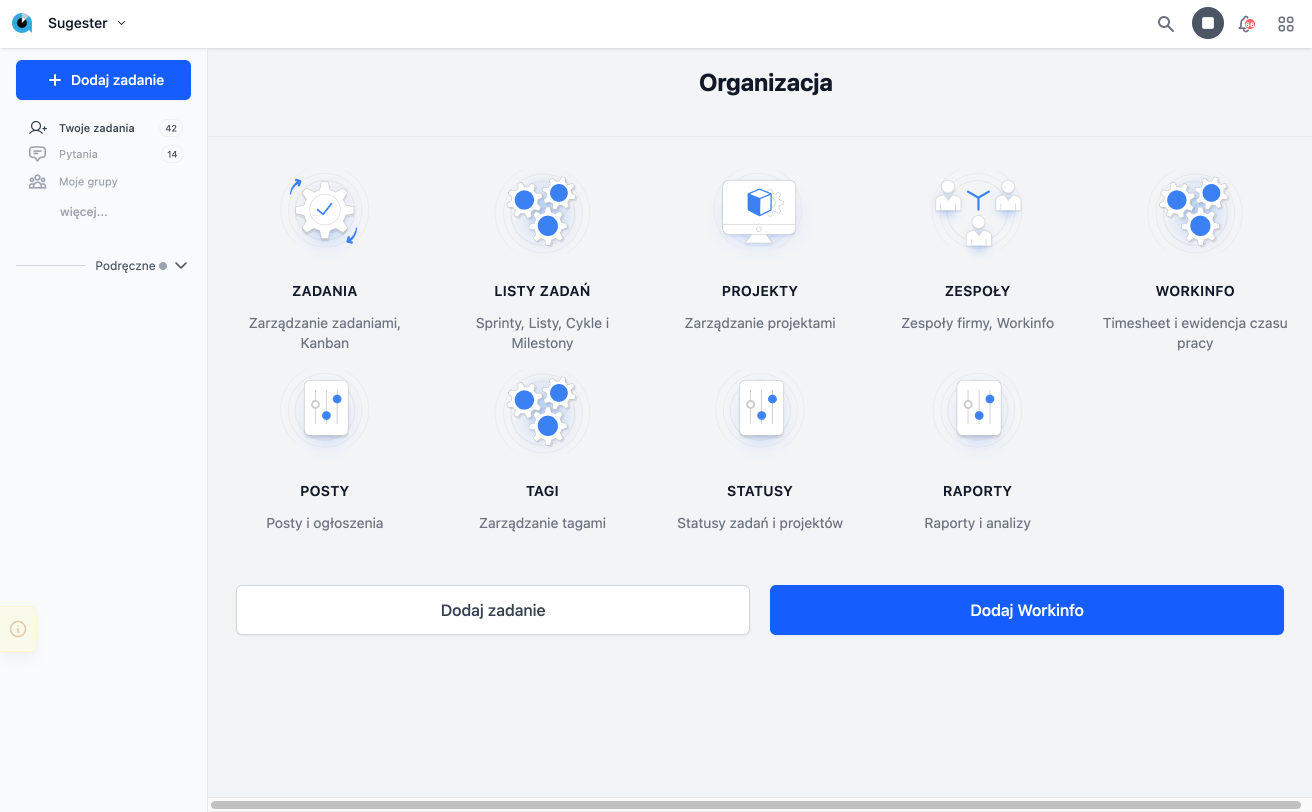
With the Search Bar in the Top Bar, you can search for any information about the team, ongoing project, or task being carried out. Just type in a keyword, and the system will display all matching results, which appear not only in titles but also in content, comments, and descriptions of posts within the system.