Mail Module
- E-mail – receiving and sending messages
- Mailbox Views – inbox, unassigned, sent, and others
- Actions on Messages – assigning, archiving, spam
- Snoozing – snooze function
- Email Threads – grouping conversations
- Internal Notes – comments invisible to the client
- Email Mailboxes – mailbox configuration
- Templates – ready-made response patterns
- Folders – organizing messages
- Filters – automatic sorting
- CRM Connections – integration with clients and tasks
- Scheduled Sending – sending at a specified time
- Sharing – public links to emails
- Useful Features – shortcuts and tips
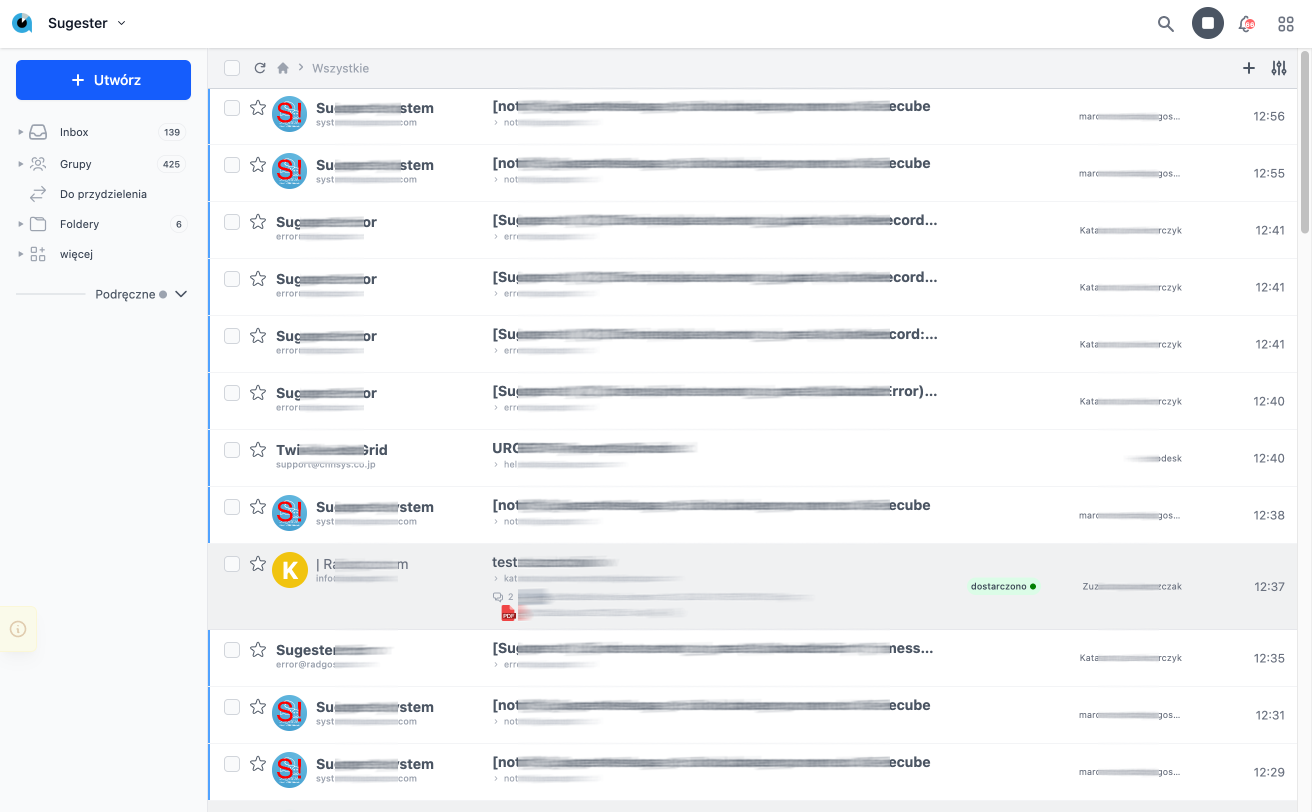
In the E-Mail module, we move to the area related to managing messages, mailboxes, email templates, folders, and message filters. This ensures that all emails received by the company are directed to the appropriate individuals or teams and assigned to a specific client. This module facilitates the organization of internal and external communication, making the customer service process clearer and more efficient.
In the Mail module, we manage individual elements:
E-mail
Options related to receiving, sending, and marking incoming messages directly to a specific employee or to a group of people dealing with the same issue. Thanks to integration with CRM, each message can be assigned to the appropriate client, making it easier to track communication history.
Mailbox Views
The system offers several predefined views to facilitate work organization:
- Inbox – messages assigned to you, unassigned
- Unassigned – messages without a responsible person, waiting to be assigned
- Sent – messages sent by you
- Drafts – saved message drafts (autosave on every change)
- Snoozed – messages postponed for later
- Scheduled – messages scheduled to be sent in the future
- Spam – messages marked as spam
- Deleted – messages in the trash (can be restored)
- Archive – archived messages
Actions on Messages
On individual messages or selected groups, you can perform the following actions:
- Assign – assign to a user, group, or team
- Archive / Restore – move to archive or restore
- Mark as spam / Not spam – automatically creates a filter blocking the sender
- Delete / Restore – move to trash (soft delete) with the possibility of recovery
- Read / Unread – change read status
- Move to folder – organization in custom folders
- Change status – assign a status (e.g., "To reply", "Pending")
- Add tag – tagging messages
- Change priority – setting message importance
- Change client – assign to another contact/company in CRM
Tip: Select multiple messages using checkboxes to perform a bulk action on all at once.
Snoozing
The Snooze function allows you to postpone a message for a specified time. The email disappears from the main view and reappears at the chosen moment – e.g., in an hour, tomorrow morning, in a week.
This is useful when: you receive a message that you cannot respond to right now, you want to remind yourself about an issue at a specific time, or you need to "clear" your inbox without archiving important matters.
Email Threads
The system automatically groups related messages into threads (conversations). This way, the entire history of email exchanges with a given person is visible in one place.
- Replies are automatically attached to the thread based on the References/In-Reply-To headers
- You can separate a single message from the thread (e.g., move to spam without affecting the rest)
- The "Delete thread" and "Restore thread" actions apply to the entire conversation
- The counter shows how many messages are in the thread
Internal Notes
You can add internal notes to each email – comments visible only to the team, invisible to the client.
Notes are useful for: passing information between employees, documenting phone agreements, adding context to the case. They support HTML formatting and attachments.
Email Mailboxes
Using the options available in mailboxes, we can assign a given mailbox to a person or a group of people who will handle it. Within the mailbox, we can also define a description and a footer that will be automatically added when sending messages.
Each mailbox can have:
- Footer – automatically added to sent messages
- Autoresponder – automatic reply to incoming messages
- Default recipient – person or team responsible for new messages
- Integration with provider – EmailLabs, SendGrid, Amazon SES, or your own SMTP
Templates
To streamline responding to messages regarding the same topic or to assist new employees in replying to received emails, we have added options for creating email message templates. Templates help maintain consistency in communication and save time when handling repetitive inquiries.
Templates support Liquid variables – you can insert the client's name, case number, date, and other data that will be automatically filled in using the template.
Folders
With the options related to folders, we can sort received messages according to our own discretion, work style, and industry. Folders allow for creating a structure tailored to the individual needs of the user, which increases work efficiency. The module also allows for sharing folders within the team, supporting collaboration among employees.
Filters
Using filters, we can specify conditions for sorting email messages, ensuring that important emails are marked appropriately while unwanted content goes to spam.
Filters can automatically:
- Assign messages to a specific person or team
- Move to a selected folder
- Mark with a status or tag
- Mark as spam (block sender)
- Set priority
Filters are checked based on: sender's address, subject, message content, attachments.
CRM Connections
The Mail module is integrated with CRM, allowing for:
- Automatic assignment to client – the system recognizes the email address and links the message to an existing contact
- Communication history – all emails with a given client visible in their card
- Linking with tasks – you can connect an email with a task in the Tasks module
- Creating tasks from email – quickly create a task based on the message
Scheduled Sending
You can write a message and schedule its sending for a specific day and time. This is useful when:
- You want to send an email during the recipient's working hours (different time zone)
- You are preparing communication in advance
- You want to avoid sending emails at night
You can edit or cancel scheduled messages until they are sent.
Sharing Emails
You can generate a public link to the email message, which you can share with people outside the system.
- The link is valid for 7 days
- Up to 100 openings per link
- Useful for sharing confirmations, agreements, or attachments
Useful Features
Auto-complete Recipients
While writing an email, in the TO field, the system searches contacts for matching words in the fields: email, name, short name, first name, last name, parts of the email (split by dots, dashes, and @), phone number, and client name. The system will show matching contacts (up to 30 records) from those we most frequently email.
Archive and Next
The "Archive and Next" button allows you to quickly process messages – after archiving, the system automatically opens the next message from the inbox.
Download Attachments
You can download all attachments from a message (or the entire thread) as a single ZIP file.
Printing and PDF
Messages can be printed or exported to PDF – individually or the entire thread.
Source Code (EML)
For advanced users, a preview of the raw source code of the message (headers, MIME structure) is available.
Activity Tracking
The system records the history of changes: who read the email, who changed the assignment, who added a note. The history is available in the message details.