Records SPF and DKIM help protect your domain from spoofing.
Thanks to them, mail servers know that the message was actually sent from an authorized server, not by a third party.
What does this mean in practice?
- your emails are less likely to end up in spam
- their deliverability increases
- you protect your domain and customers from fraud
Major providers (Gmail, Outlook, Yahoo) are increasingly rejecting emails from domains without properly configured records. Therefore, correctly setting up SPF and DKIM is very important if you send emails from your own domain.
SPF — who can send emails from your domain
The SPF record informs mail servers which servers are authorized to send emails on behalf of your domain. Without it, the recipient cannot be sure whether the email really comes from you.
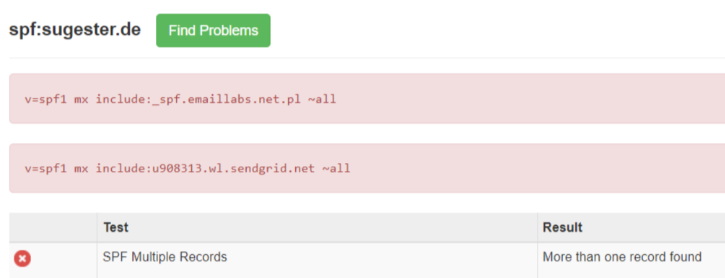
If there is already an SPF record set for your domain, do not add a second separate entry. There can only be one SPF record. Adding two separate entries is an error and may cause SPF to stop working.
In such a situation, you should modify the existing record by adding additional elements to it.
How to check if I have SPF set up?
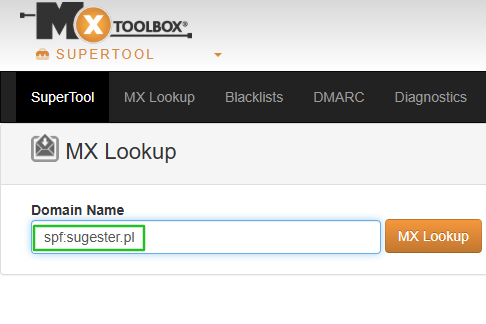
The easiest way to do this is by using the MXToolbox tool. Go to the MXToolbox website.
In the Domain Name field, enter: spf:your domain and click the MxLookup button.
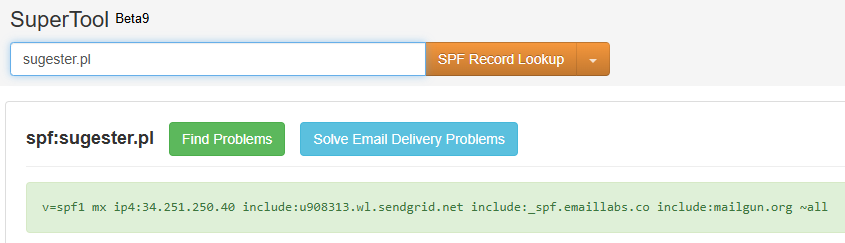
If the record is correct - the result will be marked in green and you will see an entry containing the server address.
If the record is incorrect - a message will appear in red.
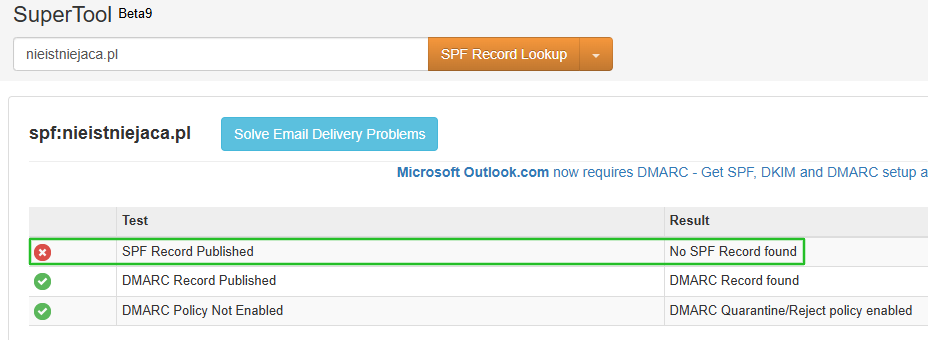
If you do not have SPF set up - you will see information about its absence.
How to add another SPF record to an existing entry?
You currently have the entry:v=spf1 mx include:amazonses.com ~allYou want to add:
include:_spf.emaillabs.net.plYou do not create a new record. Just append the
include:fragment to the existing entry.
The final effect should look like this:v=spf1 mx include:amazonses.com include:_spf.emaillabs.net.pl ~allThe common part (
v=spf1 mxand~all) remains unchanged.
TXT SPF records for different providers:
Sendgrid: “v=spf1 mx include:u908313.wl.sendgrid.net ~all”
Mailgun: “v=spf1 mx include:mailgun.org ~all”
Amazon AWS SES: “v=spf1 mx include:amazonses.com ~all”
Google Apps: “v=spf1 mx include:_spf.google.com ~all”
EmailLabs: “v=spf1 mx include:_spf.emaillabs.net.pl ~all”DKIM — digital signature of emails
DKIM adds a digital signature to every sent email. The recipient can use it to verify that the content of the message has not been altered along the way.
We generate the DKIM record. You just need to provide us with your domain and the server to which you have connected your email accounts.
How to check which server is sending emails in Sugester?
To check which server your emails are being sent from in Sugester, log into your Sugester account, go to Settings -> Email Configuration -> Email Accounts, and check what you have entered in the SMTP Server column for the given account.