Datera offers advanced VoIP services for businesses, providing stable, scalable, and secure internet telephony tailored to the needs of companies of all sizes. Solutions include, among others, cloud PBX, integrations with CRM systems, and technical support, enabling efficient and modern communication within the organization.
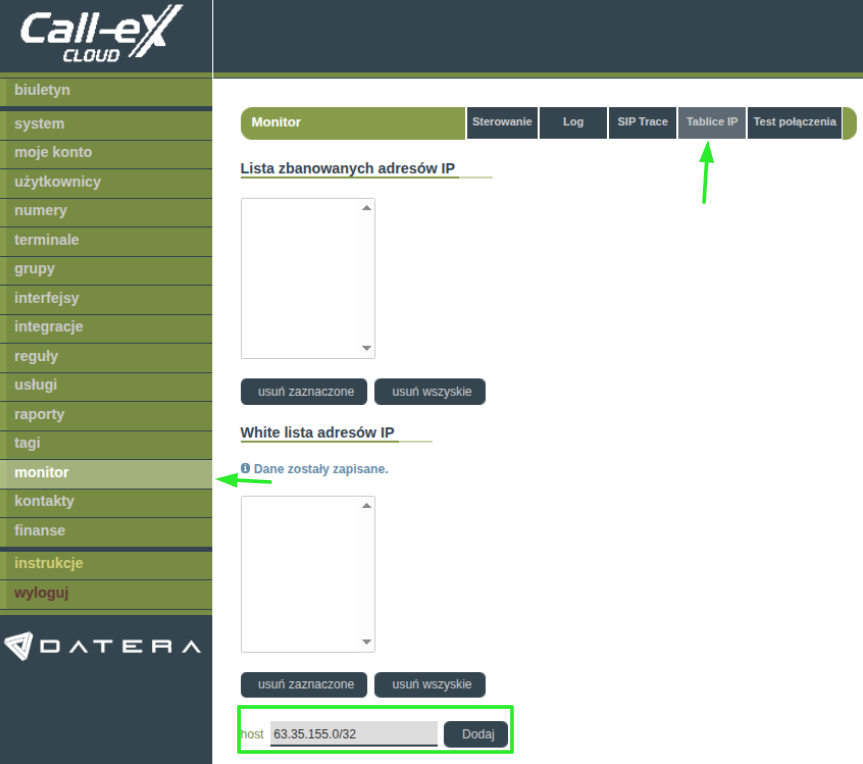
Step 1: Whitelisting the server’s IP address
To enable communication between Sugester and Datera, you need to add our server’s IP address to the trusted addresses list in Datera.
- Log in to the Datera panel.
- Navigate to: Monitor -> IP Tables -> Whitelist IP addresses
- Add our IP address: 63.35.155.0/32
Step 2: Enabling integration
- In Sugester, go to 4 dots -> Voip -> Voip Settings -> Edit
- Fill in the login and password fields. These are the login credentials for the Datera panel.

Step 3: VoIP Configuration (CTI Interface)
VoIP configuration is based on data from the CTI interface available in the Datera panel.
- In Sugester, go to 4 dots -> Voip -> Voip Configuration -> Voip Numbers -> +
- Fill in the fields according to the data available in:
Datera Client Panel -> Services -> CTI Interface
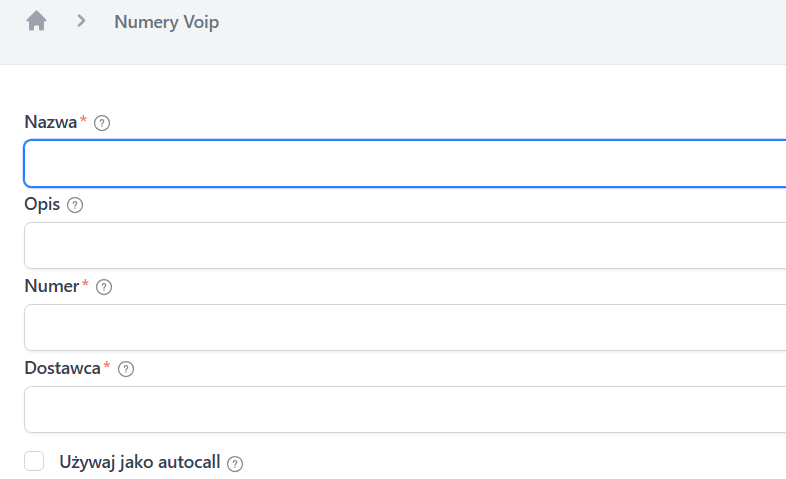
Fill in the following fields:
- Name - any name identifying the number
- Number - phone number (matching the number from Datera). Add the number as a continuous string without spaces and special characters.
- Provider - Datera
- Description - optional field if you need to insert a description for the number
- If the number is to be linked to the autocall widget, check the Use as autocall checkbox
- Save the number.
Step 4: Adding SIPs
SIP data should be taken from the Users tab in the Datera client panel.
- Log in to the Datera client panel.
- Go to the Users tab.
- In Sugester, go to 4 dots -> Voip -> SIPs -> +
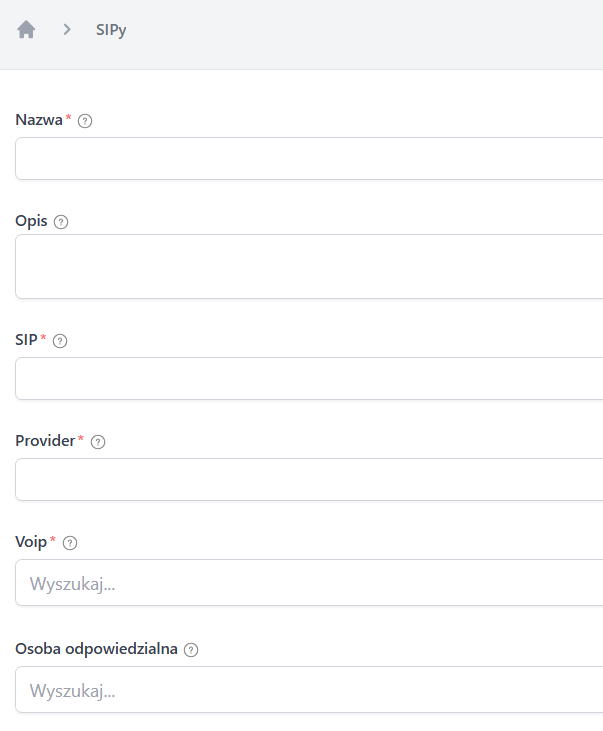
Fill in the following fields:
- Name - any name identifying the number
- Description - optional field if you need to insert a description for the number
- SIP - phone number (matching the number from Datera). Add the number as a continuous string without spaces and special characters.
- Provider - Datera
- Voip - insert the Voip number
-
Responsible Person - select the employee to whom the call should be assigned.
If the number is to be linked to the autocall widget, check the Use as autocall checkbox.
Save.
Integrating the Datera system with Sugester CRM provides benefits such as:
- registration of the caller’s number;
- handling multiple target numbers;
- recording the time and date of the start and end of the call;
- displaying the duration of the call;
- recording the type of call termination (who hung up first);
- assigning an employee to the call;
- recording calls (along with storage and retrieval of recordings - available on the Telecube account);
- adding notes to calls.