Linphone is a free, open-source VoIP (softphone) application. Available on Windows, Mac, Linux, iOS, and Android. Below is the configuration guide for Linphone with SuperVoIP for use with Sugester.
1. Download and Installation
Download Linphone from the website: linphone.org/download
| Platform | Source |
|---|---|
| Windows | linphone.org |
| Mac | linphone.org |
| Linux | linphone.org |
| iOS | App Store |
| Android | Google Play |
Install and run the application.
2. Data Needed for Configuration
Before configuring, prepare the data from the SuperVoIP panel:
- Log in to the SuperVoIP panel.
- Go to: Virtual PBX -> Workstations
- Read the data for your workstation (SIP):
- SIP Account Number — 7-digit number (e.g., 1290245)
-
SIP Password — password for the SIP account (different from the login password for the panel!)
If you do not know the SIP password — you can change it in the SuperVoIP panel by clicking on your SIP account number.3. SIP Account ConfigurationDesktop (Windows / Mac / Linux)
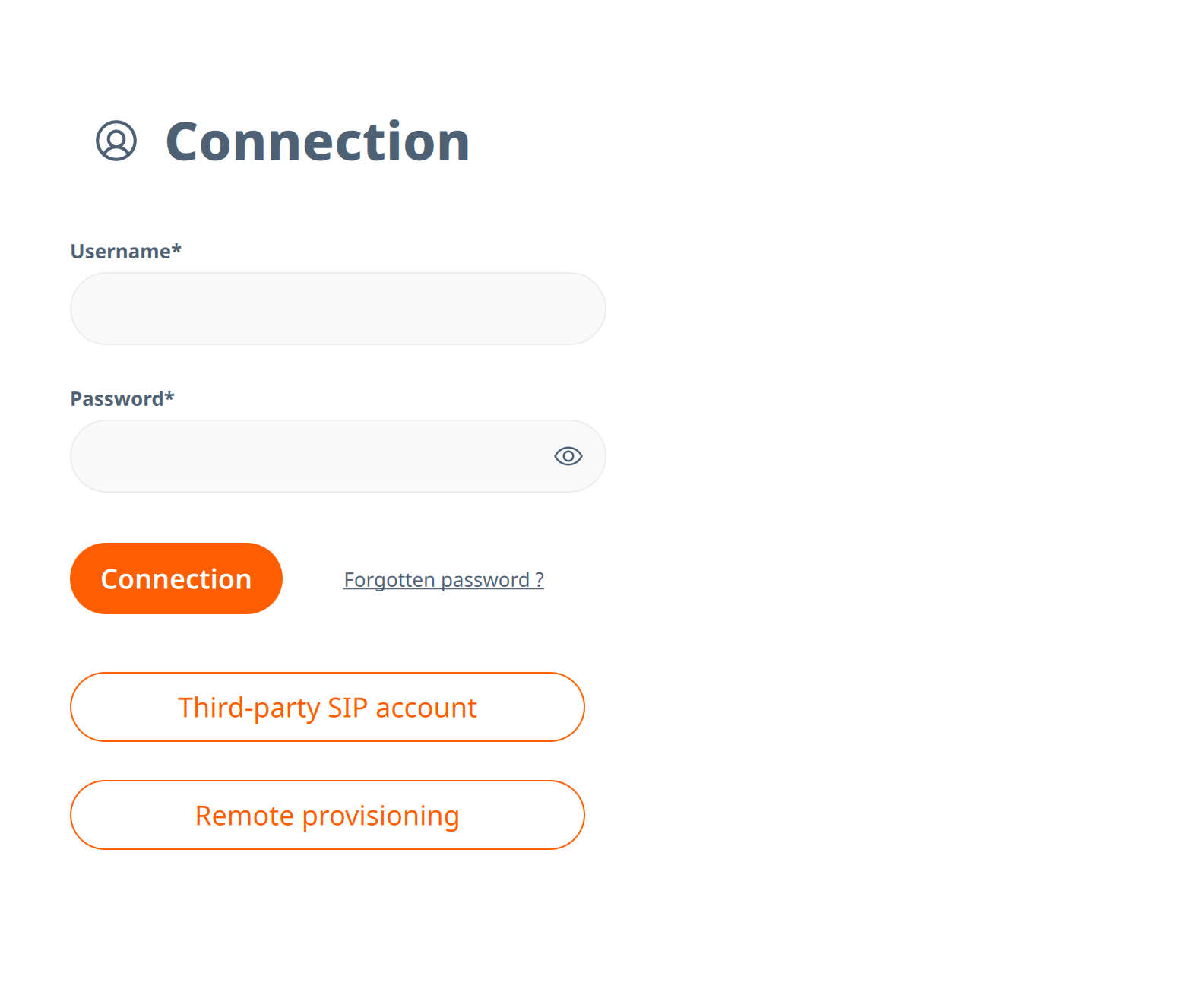
- Launch Linphone. The Connection screen will appear.
- Click the Third-party SIP account button.
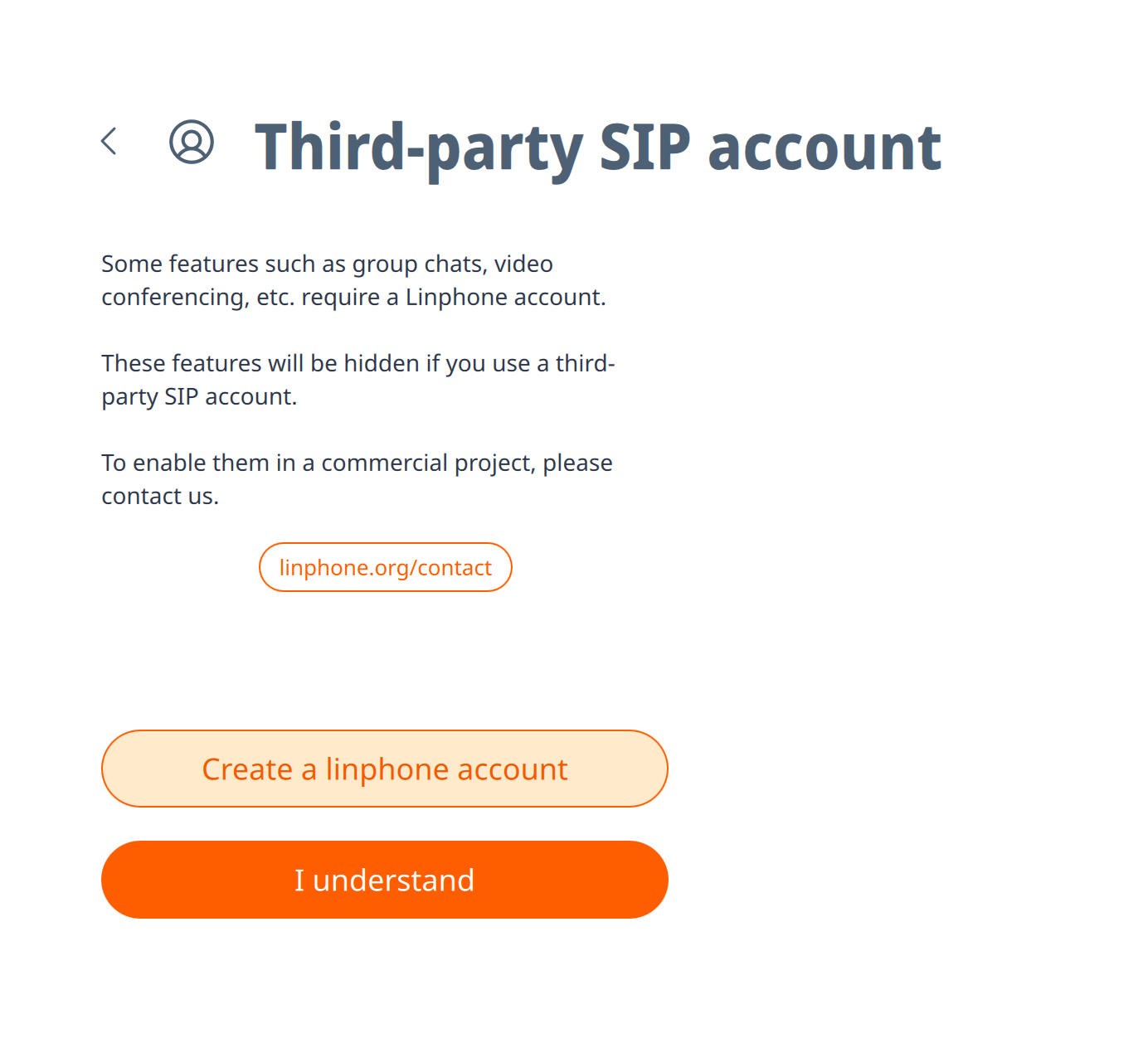
- A message will appear informing you that some features (group chats, video conferencing) require a Linphone account and will be hidden with a SIP account.
Click I understand. - Fill in the SIP account form:
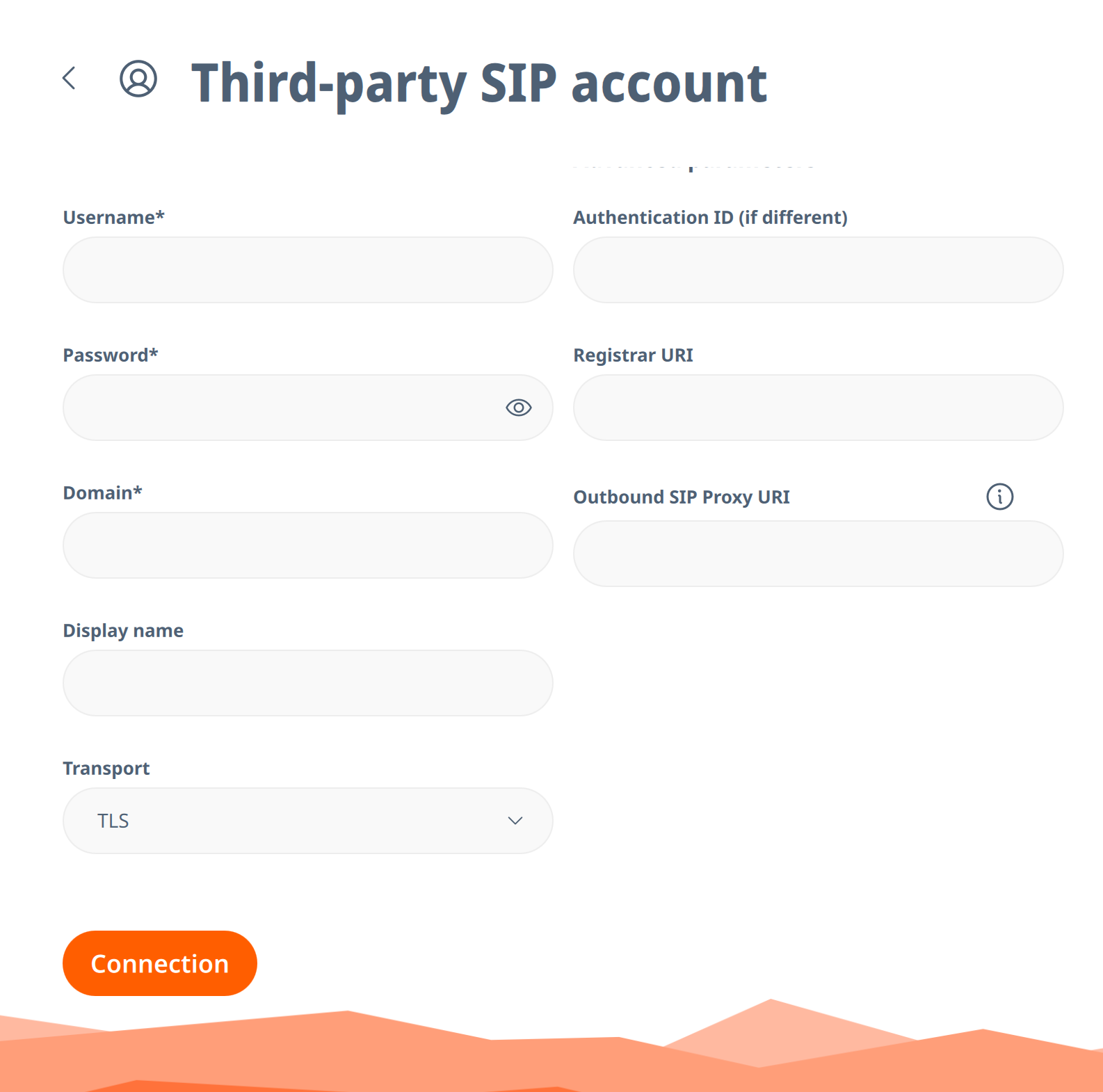
| Field | Value |
|---|---|
| Username | SIP account number (e.g., 1290245) |
| Password | SIP password from the SuperVoIP panel |
| Domain | sip.supervoip.pl |
| Display name | Your name (optional) |
| Transport | TCP (recommended) |
Leave the other fields (Authentication ID, Registrar URI, Outbound SIP Proxy URI) empty.
- Click Connection.
Mobile (iOS / Android)
- Download Linphone from the App Store or Google Play.
- Launch the application and select Third-party SIP account.
- Confirm the message by clicking I understand.
- Fill in the same data:
- Username: SIP account number
- Password: SIP password
-
Domain:
sip.supervoip.pl - Transport: TCP
- Click Connection / Login.
On iOS, push notifications work automatically — incoming calls wake the application even when it is in the background.4. Connection VerificationAfter configuration:
- Check if Linphone shows the status Connected / Registered (green dot next to the account).
- Make a test call — call another number.
- Ask someone to call you — check if the ringtone works.
Troubleshooting
If the status is Registration failed or Not registered:
- Check the password — the SIP password is different from the SuperVoIP panel password
- Check the account number — it is a 7-digit number from the workstation, not a phone number
- Change the transport — try UDP instead of TCP (or vice versa)
- Firewall — make sure ports 5060-5061 are not blocked
-
Password expired — change the SIP password in the SuperVoIP panel and enter the new one
More help: pomoc.supervoip.pl — troubleshooting5. How It Works with Sugester?After configuring Linphone:
- Open the client card in Sugester.
- Click the phone icon next to the client’s number.
- Sugester initiates the call — Linphone will ring.
- Answer in Linphone — the system will connect you with the client.
All calls are automatically recorded in Sugester’s call history (VoIP → Call History) and on the client card.6. Technical Parameters of SuperVoIPFor advanced users:
| Parameter | Value |
|---|---|
| SIP Server | sip.supervoip.pl |
| UDP Port | 5060, 5090 |
| TCP/TLS Port | 5061 |
| Audio Codecs | G.722 HD, G.711u, G.711a, iLBC, GSM |
| Video Codecs | H.261, H.263, H.263+, H.264 (SIP-to-SIP) |
| RTP (voice) | ports 10000–20000 |
| SRTP (encrypted) | ports 20001–30000 |
7. Other Softphone Applications
Linphone is one of many applications that support SIP. Alternatives:
- Zoiper — free, all platforms (SuperVoIP guide)
- MicroSIP — free, Windows only (SuperVoIP guide)
- 3CX — free Windows client (SuperVoIP guide)
-
SuperSIP — application from SuperVoIP for Android (guide)
Configuration of each of these applications requires the same data: SIP account number, SIP password, serversip.supervoip.pl.
Full list of softphone configuration instructions: pomoc.supervoip.pl